Fixing Macintosh SE FDHD

This is Professor omzn, specializing in vintage Mac restoration.

Even when left unpowered and merely displayed, my old Macs continue to steadily deteriorate.

Last December, when I powered up my Macintosh SE FDHD after a long absence, it spat out an error screen during boot. The hard drive was making abnormal noises… Has it finally gone…?
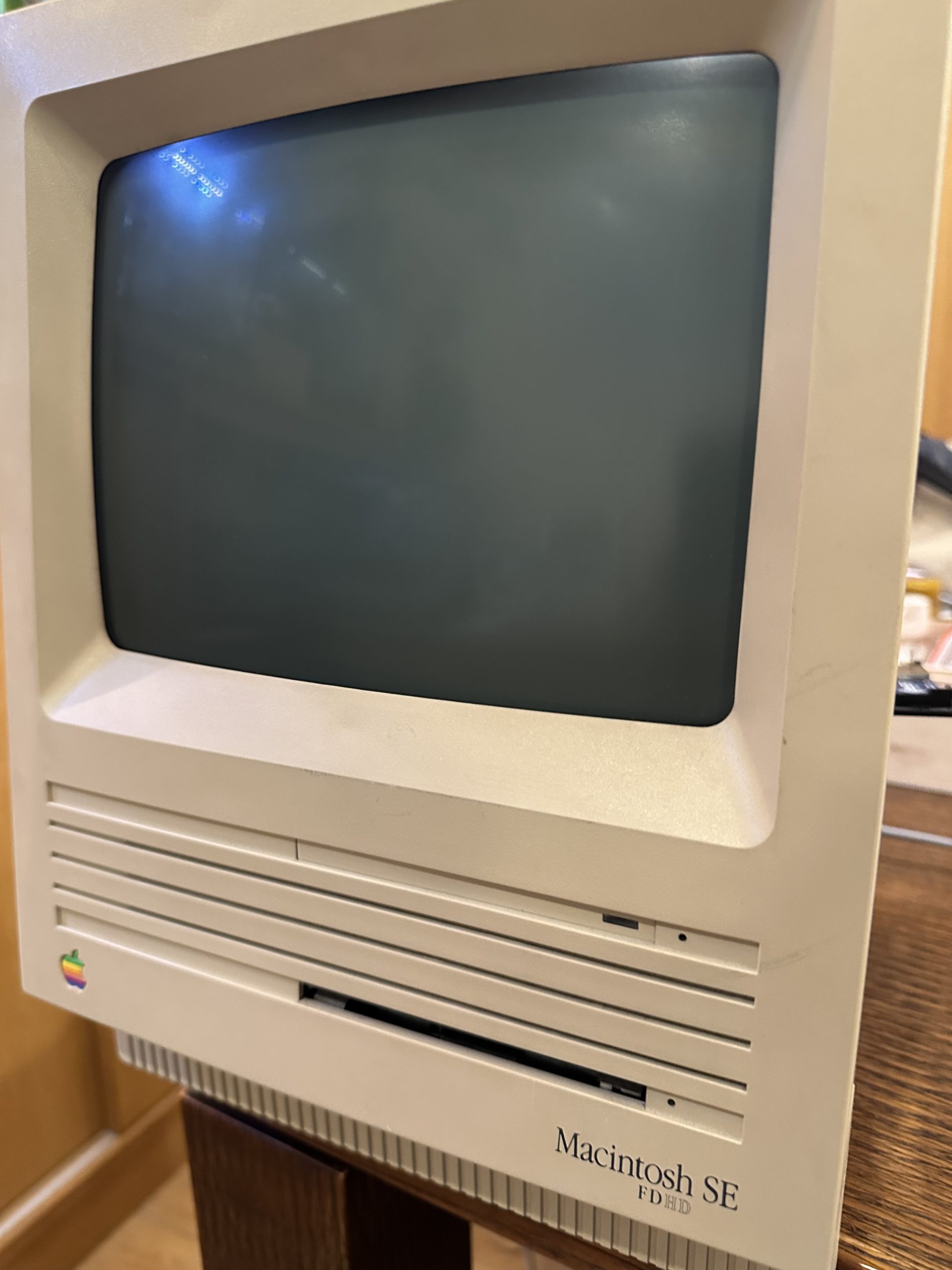
Basic specifications of the Macintosh SE FDHD:

  • Launched: August 1989
  • CPU: Motorola 68000 @ 8 MHz
  • Memory: 4 MB
  • HDD: 20 MB SCSI
  • FDD: 1.4 MB

The 68000 was a CPU that competed directly with Intel’s 80286 in its era.
From a modern perspective, the CPU is roughly 1,000 times more powerful, memory capacity is 1,000 times greater, and HDD storage capacity has increased by 100,000 to 1,000,000 times…

For reference, the Macintosh SE was released in March 1987 with only a floppy drive. The OS was even booted directly from this floppy drive.
The SE FDHD introduced an HDD expansion option – a name that shows absolutely zero sense of design sensibility. Later models like the SE/30, which featured a 68030 CPU, became massively successful.

Older Mac models (pre-Power Mac G3) used SCSI hard drives.
SCSI was a convenient standard that could accommodate up to seven devices on a single bus, but eventually faded in favor of cheaper IDE (ATA) connections. Moving on, I began disassembling the SE to extract the HDD.

Opening the back required a long-handled Torx bit, which took me several days to acquire.
After removing the screws, I found that a tool called a “Mac opener” would make removing the back panel easier, but after brief research, I discovered it wasn’t available for sale, so I settled for opening it with a flathead screwdriver.

The exposed CRT tube gives me quite a fright.

The CRT’s display settings can be adjusted from the side. The focus was slightly blurry, and the image was shrinking vertically and horizontally – with some adjustment, the picture became crystal clear.

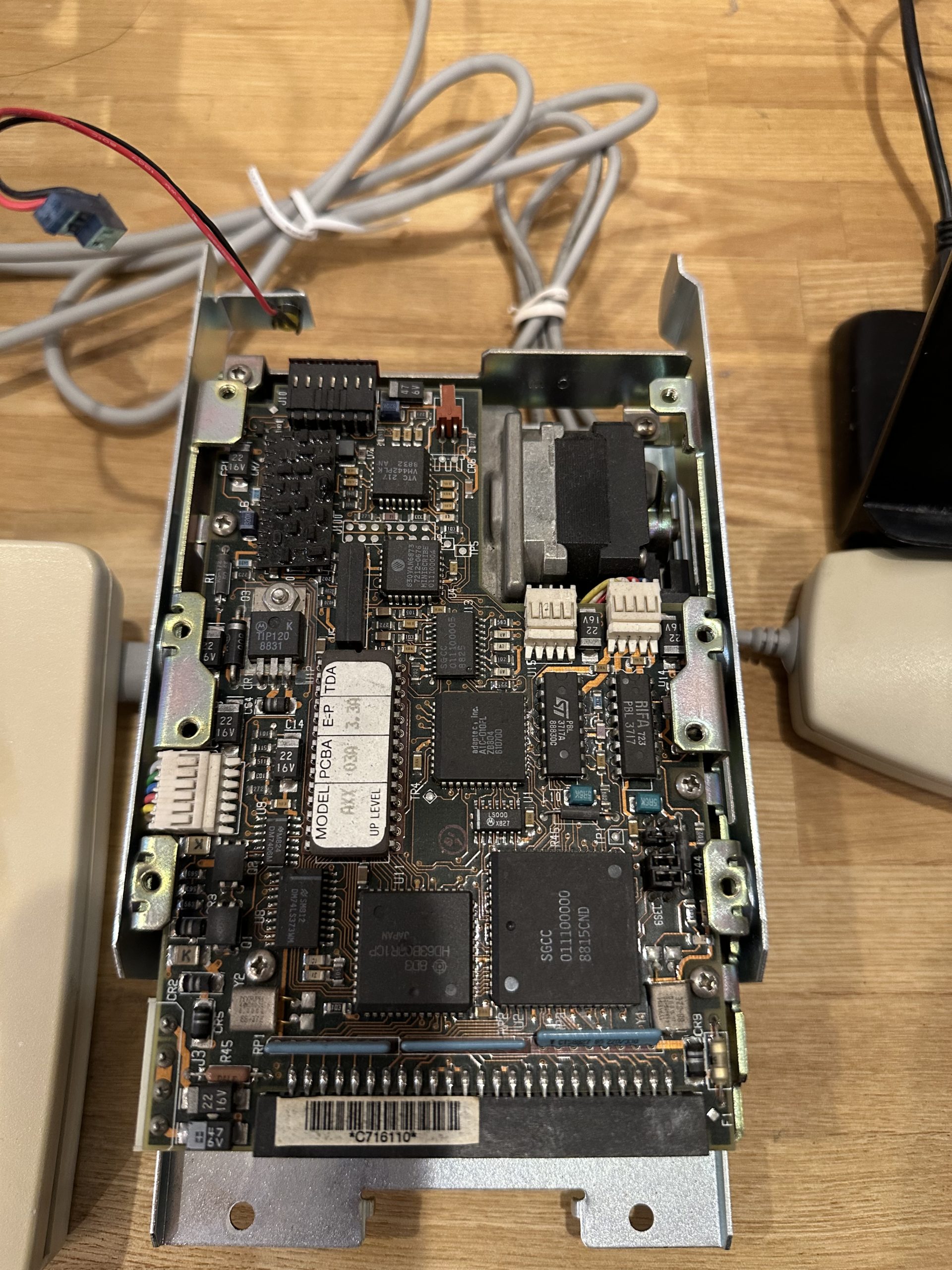
The HDD has been successfully removed. What a massive unit… What exactly is that stepping motor-like component?
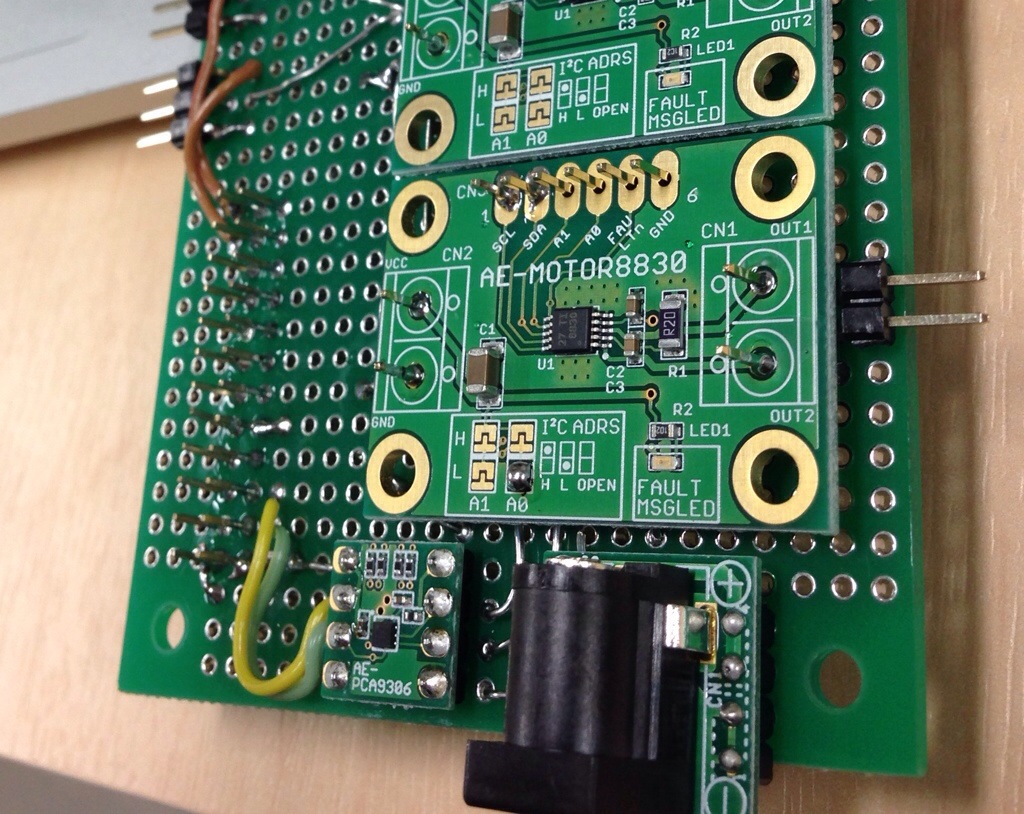
As already shown in the second image, the BlueSCSI device serves as a replacement for the SCSI HDD. Presumably, the embedded Raspberry Pi Pico handles SCSI protocol emulation here.
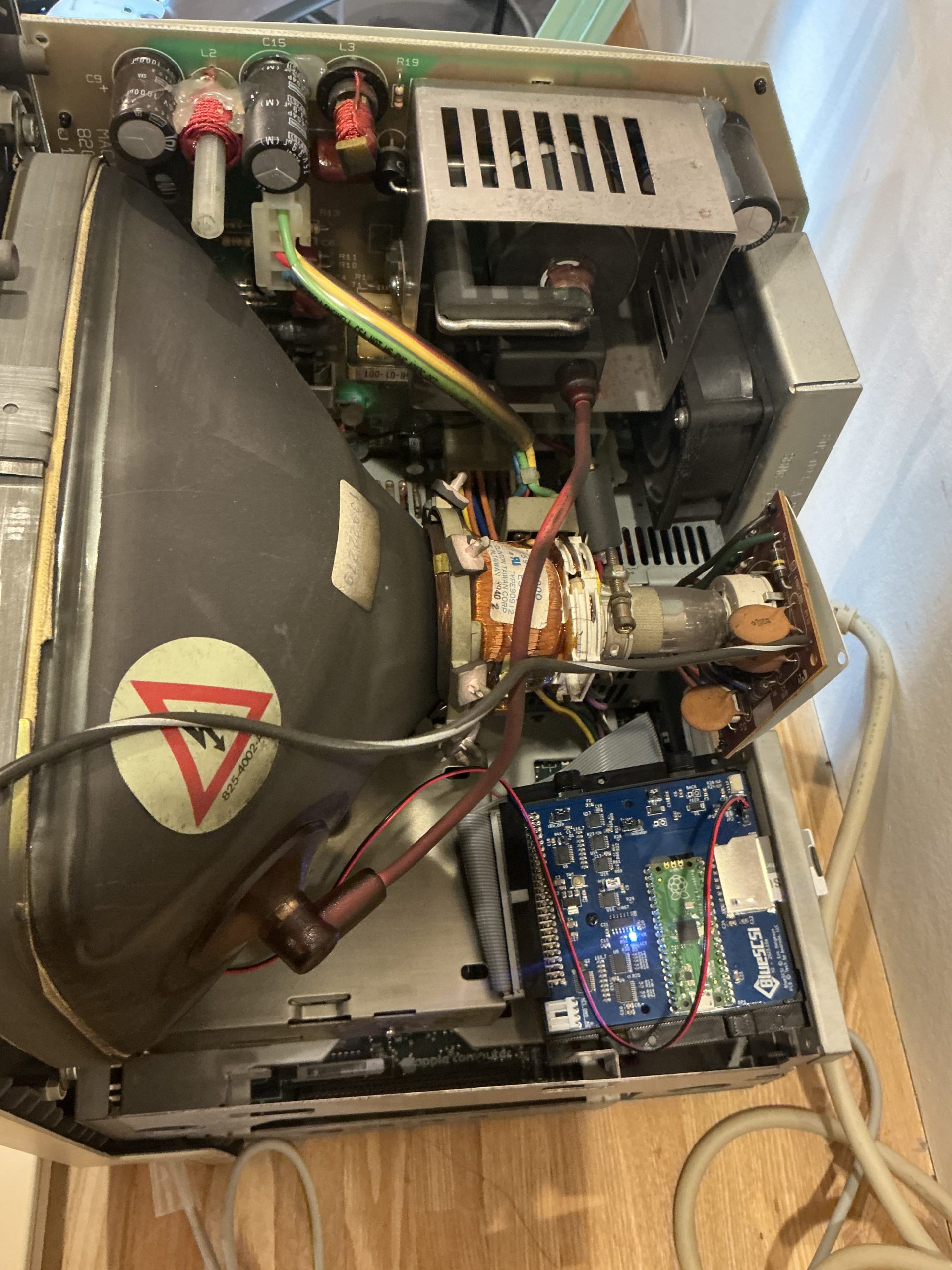
What’s truly impressive about this product is that it doesn’t simply convert the SD card into SCSI itself, but rather converts the disk image stored on the SD card to SCSI format. Since the disk images are compatible with Mac emulators like BasiliskII and SheepShaver, you can copy emulator-generated disks and mount them on the actual hardware. The SD card can contain multiple disk images, allowing you to present multiple drives as if they were connected via SCSI bus. Since this functionality is possible, there’s no point without enabling SD card access. I created a bracket for SD card access in the SE’s rear expansion slot.

The most challenging part is creating the boot drive, but BlueSCSI makes this process significantly easier.

First, I set up a SheepShaver (PowerPC emulator) on my MacBook Pro to create a MacOS 9-compatible environment.
I prepared both the 漢字Talk 7.1 installation media and a disk image for installation. The installation disk image requires incorporating an SCSI driver, so I created it using Disk Jockey app.
Once ready, I launched the 漢字Talk installer from MacOS 9 and had it install onto an empty drive. After unmounting the disk image, I copied it to the SD card and booted it on the physical Macintosh SE.

Pong!

From conventional thinking, numerous strange phenomena occur – why does the 680×0-specific installer run under PowerPC-based MacOS 9? Why does a raw disk copy function as a boot drive without any consideration for bootloaders or such…?

But when it comes to Macs…

that explains everything.

See you!
Collecting and operating Classic Macintosh computers

Collecting and operating Classic Macintosh computers

Hello, I’m Professor omzn (specializing in vintage Mac collecting).

While I’ve made vintage Mac collecting my profession, I’ve been particularly active in the past year.

Recently, I realized that just collecting Apple-related keyboards and mice alone has accumulated quite a collection – and I’ve essentially acquired every type of mouse available.

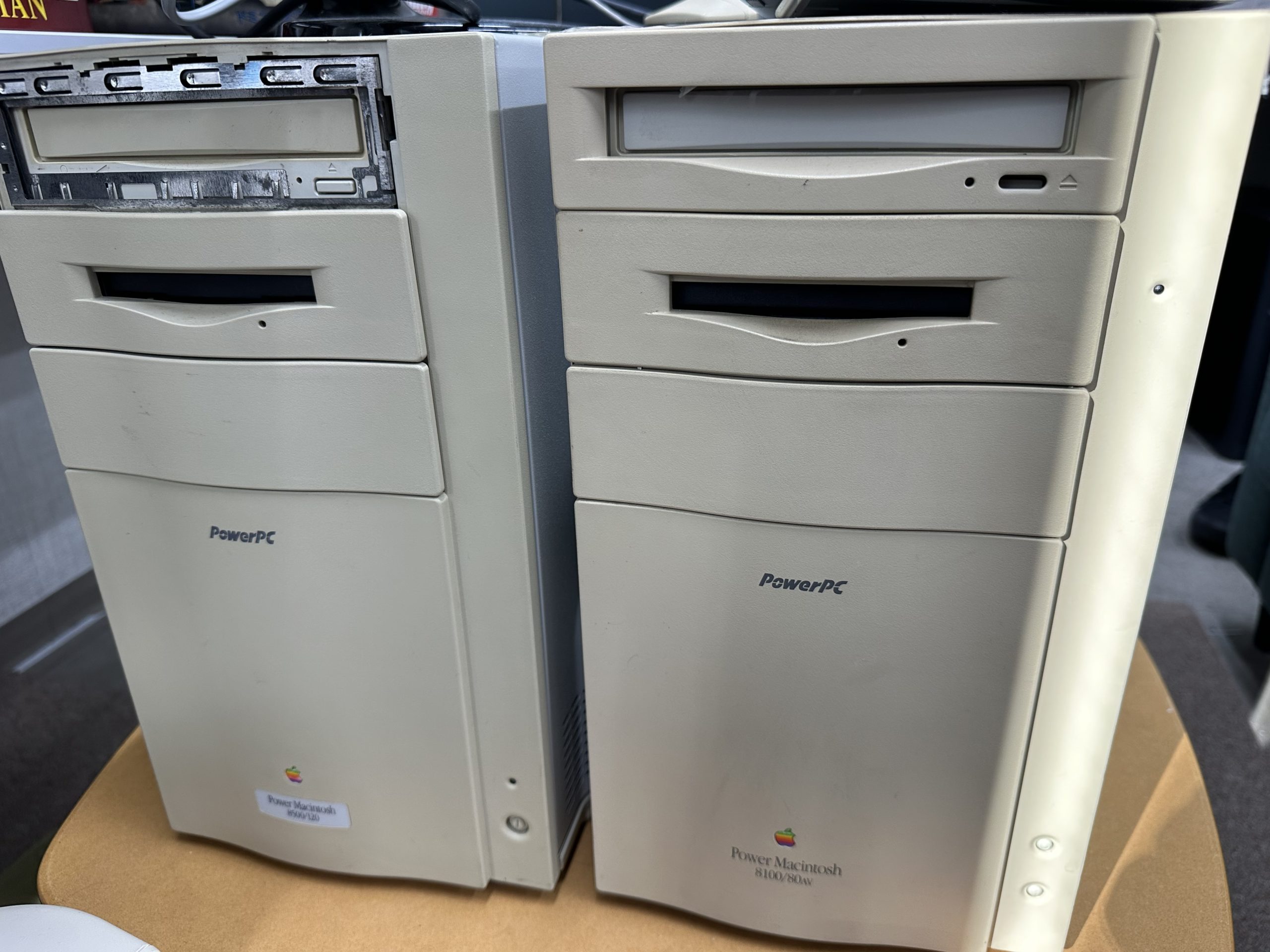
A Power Macintosh 8500 that was rescued from a junkyard, along with my previously stored Power Macintosh 8100/80AV.
The 8500 booted up, but after opening the case to add memory, it stopped functioning completely 😭. The 8100, on the other hand, displays a cruel error message indicating a logic board failure when powered on.

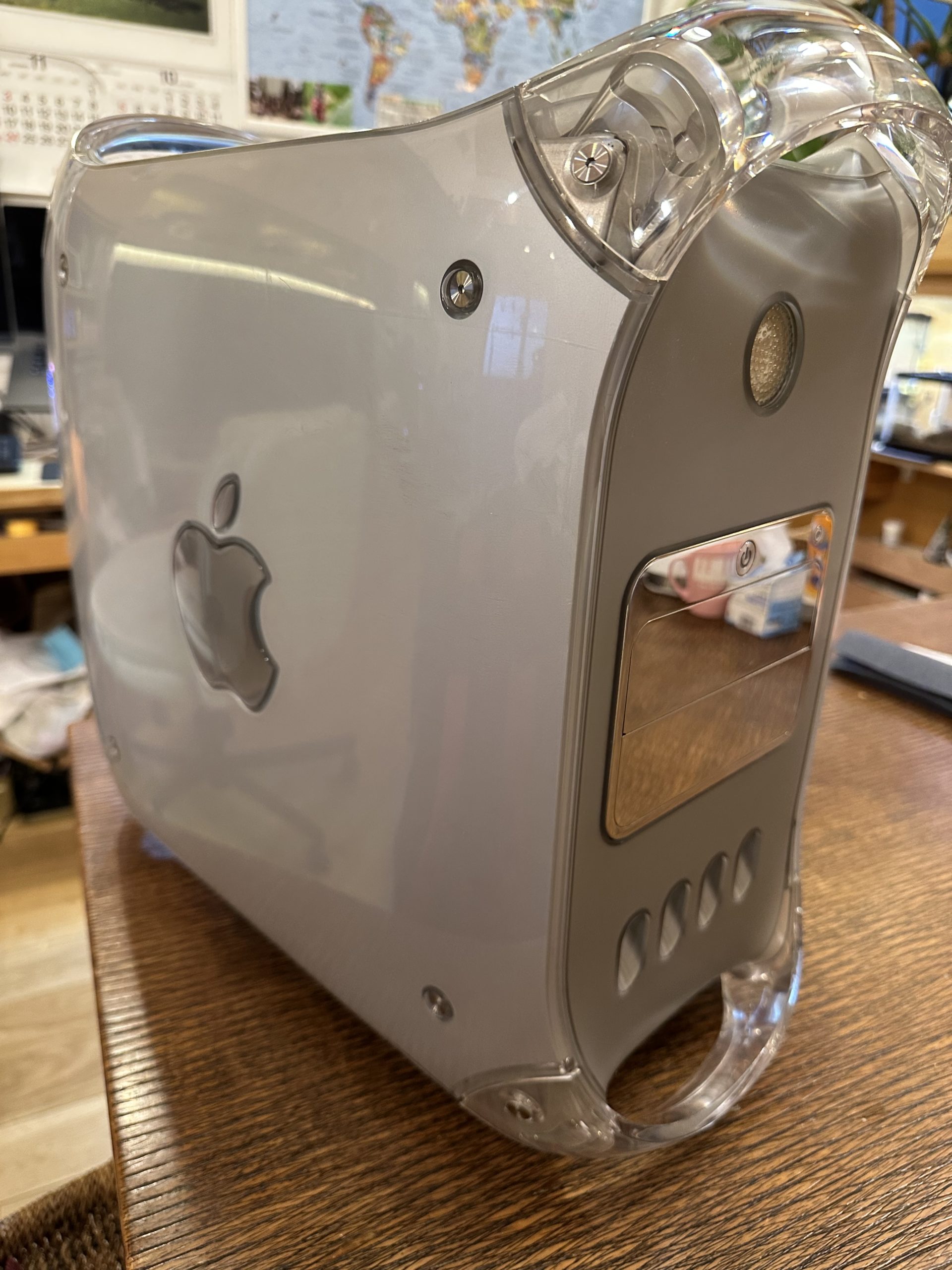
I’ve acquired a Power Mac G4 with the “Mirrored Driver Doors” design – priced at just ¥3,000 at Hard Off despite being marked as junk. Although the HDD had been removed, it still came with 2GB of memory. When I installed a SATA SSD via ATAPI conversion, it successfully booted. It runs up to Mac OS X 10.5.

The Power Mac G4 has a notorious reputation for being extremely loud – it’s genuinely quite noisy even when just running. At this era of Macs, you either made design choices that compromised performance or performance choices that compromised design.

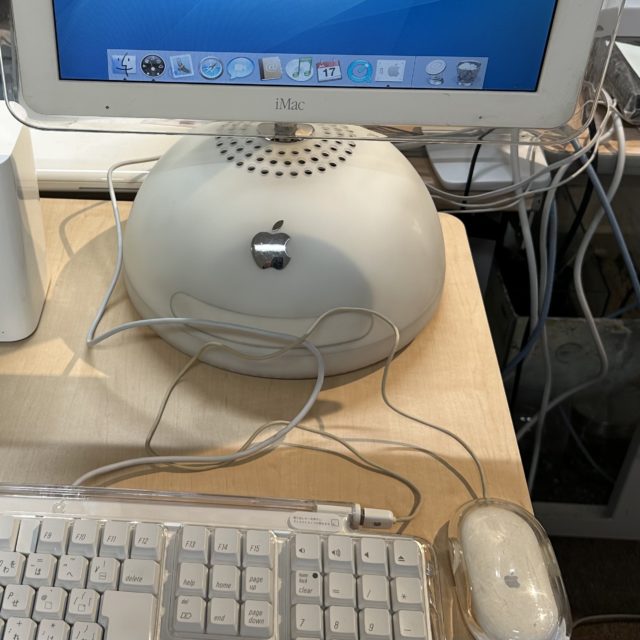
I couldn’t resist and ended up getting an iMac G4 as well – priced at ¥10,000 on Yahoo Auctions. This bargain price was incredible for a completely functional unit.

The iMac G4 represents Apple’s attempt to rebrand after their failed G4 cube design. It addresses all the shortcomings of the G4 cube and achieves remarkably high levels of perfection as a compact all-in-one system. The adorable daifuku-inspired form factor doesn’t hurt either.

Here’s my own mini Macintosh Classic clone – built from scratch. Inside contains a Raspberry Pi 5 running SheepShaver, a PowerPC emulator, which allows MacOS 9 to boot. The original keyboard can be used through a homemade ADB-USB converter.

At our Soflab, the current hot game to play on these vintage Macs is “Same Game”!

There’s so much more I could mention, but I’ll stop here for now…

(日本語) Raspberry PiのPython3でSSLv3 handshake failureを解決した話

Sorry, this entry is only available in 日本語.

あくあたん在室モニターは,Raspberry Piで動いています.
先日らぼのWebサーバがアップデートされたときから,うまく動作しなくなりました.

モニターでは,らぼのWebサーバで公開しているAPIを叩いて在室状況を取得します.
APIはhttpだけでなく,httpsも対応していました.

モニターのログを見ると,データ取得ルーチンが止まっています.

ssl.SSLError: [SSL: SSLV3_ALERT_HANDSHAKE_FAILURE] sslv3 alert handshake failure

おっ,SSLのエラーか.
新しいサーバではTLS1.0は捨てられました.そこに異議を唱えるつもりはないので,こちらで対応すべきですね.

普通に考えて,何かSSL周りが古いとかそういう状況が考えられます.
これまで,http.clientを使ってアクセスしていたのですが,requestsのほうが良い感じと聞いたので,書き換えてみました.実際,requestsは良い感じに書けます.

テストは次の方法でできます.

$ /usr/bin/python3
Python 3.5.3 (default, Sep 27 2018, 17:25:39)
[GCC 6.3.0 20170516] on linux
Type "help", "copyright", "credits" or "license" for more information.
>>> import requests
>>> import ssl
>>> print(ssl.OPENSSL_VERSION)
OpenSSL 1.1.0j  20 Nov 2018
>>> requests.get('https://se.is.kit.ac.jp/')
Traceback (most recent call last):
  File "/home/pi/.local/lib/python3.5/site-packages/urllib3/connectionpool.py",
line 600, in urlopen
    chunked=chunked)
  File "/home/pi/.local/lib/python3.5/site-packages/urllib3/connectionpool.py",
line 343, in _make_request
    self._validate_conn(conn)
  File "/home/pi/.local/lib/python3.5/site-packages/urllib3/connectionpool.py",
line 839, in _validate_conn
    conn.connect()
  File "/home/pi/.local/lib/python3.5/site-packages/urllib3/connection.py", line
 344, in connect
    ssl_context=context)
  File "/home/pi/.local/lib/python3.5/site-packages/urllib3/util/ssl_.py", line
347, in ssl_wrap_socket
    return context.wrap_socket(sock, server_hostname=server_hostname)
  File "/usr/lib/python3.5/ssl.py", line 385, in wrap_socket
    _context=self)
  File "/usr/lib/python3.5/ssl.py", line 760, in __init__
    self.do_handshake()
  File "/usr/lib/python3.5/ssl.py", line 996, in do_handshake
    self._sslobj.do_handshake()
  File "/usr/lib/python3.5/ssl.py", line 641, in do_handshake
    self._sslobj.do_handshake()
ssl.SSLError: [SSL: SSLV3_ALERT_HANDSHAKE_FAILURE] sslv3 alert handshake failur$ (_ssl.c:720)

しかし,エラーは消えませんでした.

pipで関連するモジュールを最新にしてみました.

しかし,エラーは消えませんでした.

試しに,Macで同じコードを実行しました.

~> python3
Python 3.7.3 (default, Mar 27 2019, 09:23:15)
[Clang 10.0.1 (clang-1001.0.46.3)] on darwin
Type "help", "copyright", "credits" or "license" for more information.
>>> import requests
>>> import ssl
>>> print(ssl.OPENSSL_VERSION)
OpenSSL 1.0.2r  26 Feb 2019
>>> requests.get('https://se.is.kit.ac.jp')
<Response [200]>
>>>

エラーは出ません.

たまたまPython3.4が動いているraspberry piが生きていたので,そこから同じコードを実行しました.

Python 3.4.2 (default, Oct 19 2014, 13:31:11)
[GCC 4.9.1] on linux
Type "help", "copyright", "credits" or "license" for more information.
>>> import requests
>>> import ssl
>>> print (ssl.OPENSSL_VERSION)
OpenSSL 1.0.1t  3 May 2016
>>> requests.get('https://se.is.kit.ac.jp')
<Response [200]>
>>>

エラーは出ません.

古いpythonと古いsslでも動くのに,ちょうど今のpython3.5とopenssl 1.1.0jの組み合わせでは動かないの??
問題が切り分けられずに頭が痛くなってきます.こうなったら初期化です.Raspberry Piの公式から最新のイメージをダウンロードして,SDを初期化します.

まっさらなraspbianの上でなら…

$ /usr/bin/python3
Python 3.5.3 (default, Sep 27 2018, 17:25:39)
[GCC 6.3.0 20170516] on linux
Type "help", "copyright", "credits" or "license" for more information.
>>> import requests
>>> import ssl
>>> print(ssl.OPENSSL_VERSION)
OpenSSL 1.1.0j  20 Nov 2018
>>> requests.get('https://se.is.kit.ac.jp/')
Traceback (most recent call last):
  File "/home/pi/.local/lib/python3.5/site-packages/urllib3/connectionpool.py",
line 600, in urlopen
    chunked=chunked)
  File "/home/pi/.local/lib/python3.5/site-packages/urllib3/connectionpool.py",
line 343, in _make_request
    self._validate_conn(conn)
  File "/home/pi/.local/lib/python3.5/site-packages/urllib3/connectionpool.py",
line 839, in _validate_conn
    conn.connect()
  File "/home/pi/.local/lib/python3.5/site-packages/urllib3/connection.py", line
 344, in connect
    ssl_context=context)
  File "/home/pi/.local/lib/python3.5/site-packages/urllib3/util/ssl_.py", line
347, in ssl_wrap_socket
    return context.wrap_socket(sock, server_hostname=server_hostname)
  File "/usr/lib/python3.5/ssl.py", line 385, in wrap_socket
    _context=self)
  File "/usr/lib/python3.5/ssl.py", line 760, in __init__
    self.do_handshake()
  File "/usr/lib/python3.5/ssl.py", line 996, in do_handshake
    self._sslobj.do_handshake()
  File "/usr/lib/python3.5/ssl.py", line 641, in do_handshake
    self._sslobj.do_handshake()
ssl.SSLError: [SSL: SSLV3_ALERT_HANDSHAKE_FAILURE] sslv3 alert handshake failur$ (_ssl.c:720)

こらあかん.
ついに,Raspberry Pi上でPython 3.7をbuildし直すことにしました.

$ sudo apt update
$ sudo apt install -y libffi-dev libbz2-dev liblzma-dev libsqlite3-dev libncurses5-dev libgdbm-dev zlib1g-dev libreadline-dev libssl-dev tk-dev build-essential libncursesw5-dev libc6-dev openssl
$ cd Python-3.7.3
$ ./configure --enable-optimizations
$ make
$ sudo make install

インストールが終わったら,requestsモジュールをインストールします.

$ sudo /usr/local/bin/pip3 install requests

テストします.(ほんま許して)

$ /usr/local/bin/python3
Python 3.7.3 (default, Apr 27 2019, 21:00:58)
[GCC 6.3.0 20170516] on linux
Type "help", "copyright", "credits" or "license" for more information.
>>> import requests
>>> import ssl
>>> print(ssl.OPENSSL_VERSION)
OpenSSL 1.1.0j  20 Nov 2018
>>> requests.get('https://se.is.kit.ac.jp/')
<Response [200]>
>>>

動いた…

なお,この後.新しいPython3.7.3ではもう1つのはまりポイント,pygameにて更に苦労することになります.
それはまた,別の話